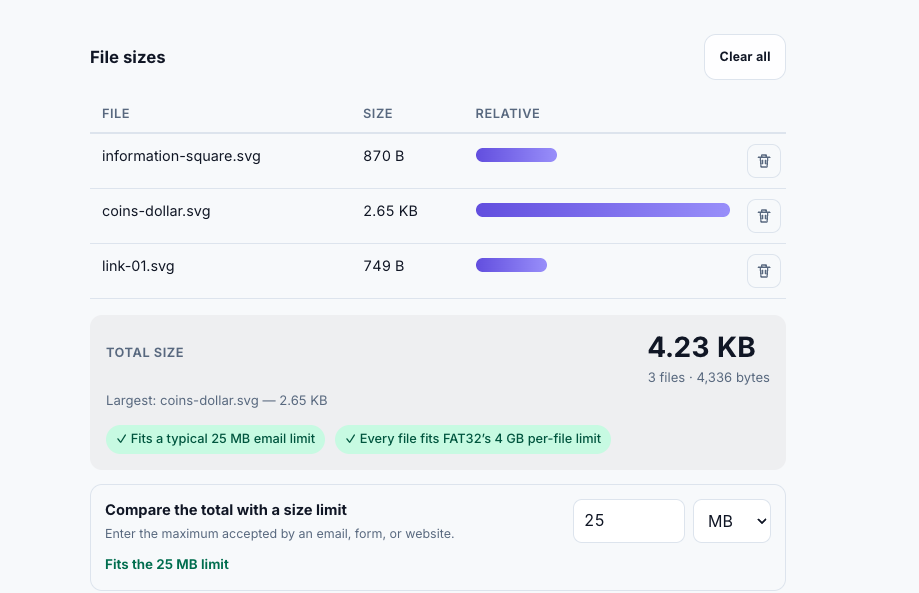
Hi guys, I’m using the plugin, but I noticed that the file sizes being saved in Wasabi are different from the actual file sizes. Could you please look into this and fix the issue?
Thank you!

Hi guys, I’m using the plugin, but I noticed that the file sizes being saved in Wasabi are different from the actual file sizes. Could you please look into this and fix the issue?
Thank you!
Hi @jannat.tariq,
Looking at the comparison between your local files and what is shown in the Wasabi console, the files are actually matching in size, but their file names appear swapped:
link-01.svg).information-square.svg).This issue typically occurs when multiple files are uploaded simultaneously and the order of file names or metadata gets mismatched during the workflow execution or list processing.
To help pinpoint what is causing the file names and payloads to mismatch during upload:
If you are using the exact recommended workflow from the plugin setup, please share a screenshot of your Bubble workflow action settings or the dynamic expressions used during the upload process so we can review the configuration step-by-step.
For further details on plugin configurations and setups, feel free to check our documentation at: https://docs.zeroqode.com/plugins/wasabi-cloud-storage.
Best regards,
Support Team
Browse all Zeroqode Plugins for bubble

There is also one other thing that’s happening is I upload svg sometimes it converts into pdf for other data types as well. What might be the issue. It gets uploaded like that on wasabi as well
Hi @jannat.tariq,
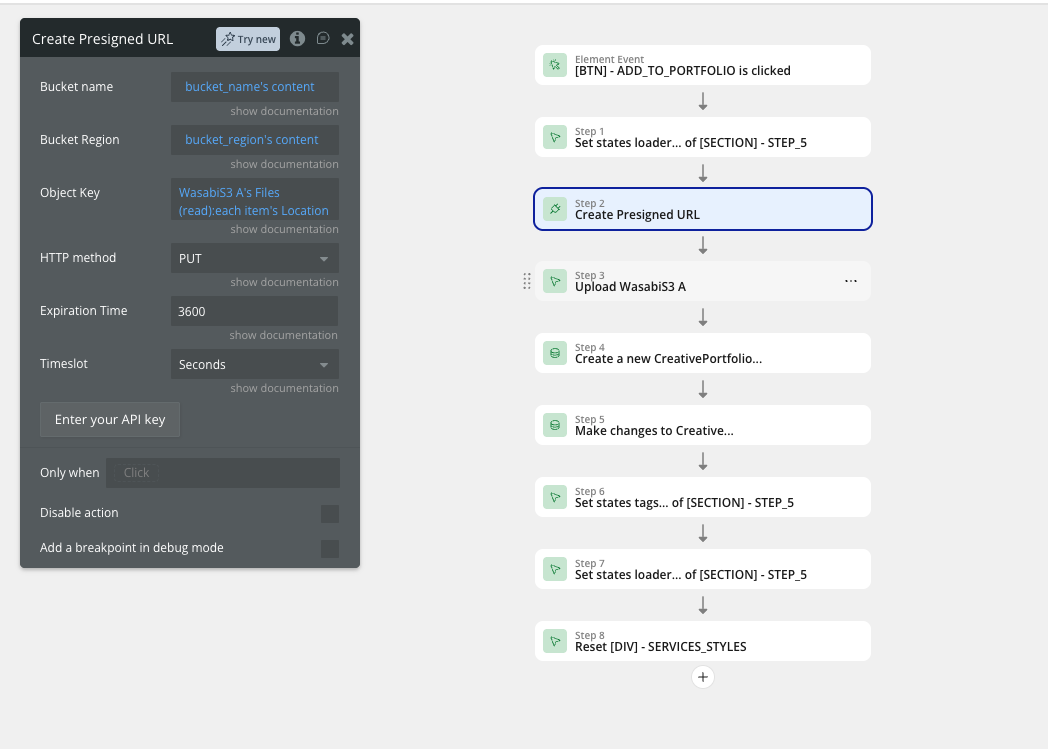
Thank you for providing the screenshot of your workflow action.
When generating presigned URLs for a list of items using :each item's Location, Bubble processes these lists asynchronously. This can cause the URLs to return in a different order than the original list of files, leading to file metadata and names getting swapped upon upload.
To fix the file swapping issue and address the format converting to PDF:
:each item's Location on a list in a single action: Instead, trigger the presigned URL generation and upload step per individual file using a Backend Workflow or a Schedule a workflow on a list action. This ensures each file is processed sequentially with its corresponding name and metadata.Content-Type header matches the specific file type (e.g., image/svg+xml for SVG files). If the Content-Type header is omitted, incorrect, or defaults to application/octet-stream, Wasabi or the receiving service may assign a generic format or render it incorrectly as a PDF.Please update your workflow to process files individually and ensure the Content-Type header is defined. If you need step-by-step guidance, refer to the plugin documentation at: https://docs.zeroqode.com/plugins/wasabi-cloud-storage.
Best regards,
Support Team
Browse all Zeroqode Plugins for bubble
Hi Constantin Raicovici,
Could you please clarify what you mean by “upload step per individual file”? Which backend workflow action should I use to upload the file to Wasabi?
Also, regarding the Content-Type, I don’t see any option in the current action where I can define or set the Content-Type. Could you please let me know where this should be configured?
Thank you.
Hi @jannat.tariq,
To process individual files and set the correct configuration, here is how you can set this up:
Processing Files Individually
When passing a list of files to a single action, Bubble handles the array items concurrently, which leads to index mismatching. To fix this, process each file separately:
This File individually, followed by the upload step. This ensures each presigned URL is mapped strictly to its corresponding file.Configuring Content-Type
The Content-Type header specifies the file format (such as image/svg+xml for SVG files) so storage providers do not default to generic formats or render files improperly:
Content-Type field (e.g., using This File's file_type or specifying image/svg+xml for SVGs). If using presigned URLs with custom headers, ensure the same Content-Type set during URL creation matches the header sent in the upload request.For complete additional instructions, please refer to our documentation: https://docs.zeroqode.com/plugins/wasabi-cloud-storage.
Best regards,
Support Team
Browse all Zeroqode Plugins for bubble
For uploading files at the backend, there is no direct action available. I can use Create Presigned URL, but the other action, Upload File to Wasabi from Another Cloud, is not applicable because I’m using the Wasabi Uploader. What should I do in this case?
Hi @jannat.tariq,
Thank you for clarifying. If you are using the front-end Wasabi Uploader element, you do not need to use backend workflows or manually run the Create Presigned URL action. The Wasabi Uploader element manages the direct upload process from the browser.
Why File Swapping Occurs
When you pass a list of files to the Create Presigned URL action (such as using :each item's Location), Bubble processes and returns those URLs asynchronously. Because the responses return out of order, the uploaded files end up mapped to the wrong file names.
How to Resolve This with Wasabi Uploader
.svg) upon selection. If an SVG loses its extension or MIME type during processing, storage providers like Wasabi may default to generic binary formats or render them incorrectly.For complete setup guides and element action descriptions, please refer to our documentation: https://docs.zeroqode.com/plugins/wasabi-cloud-storage.
Best regards,
Support Team
Browse all Zeroqode Plugins for bubble
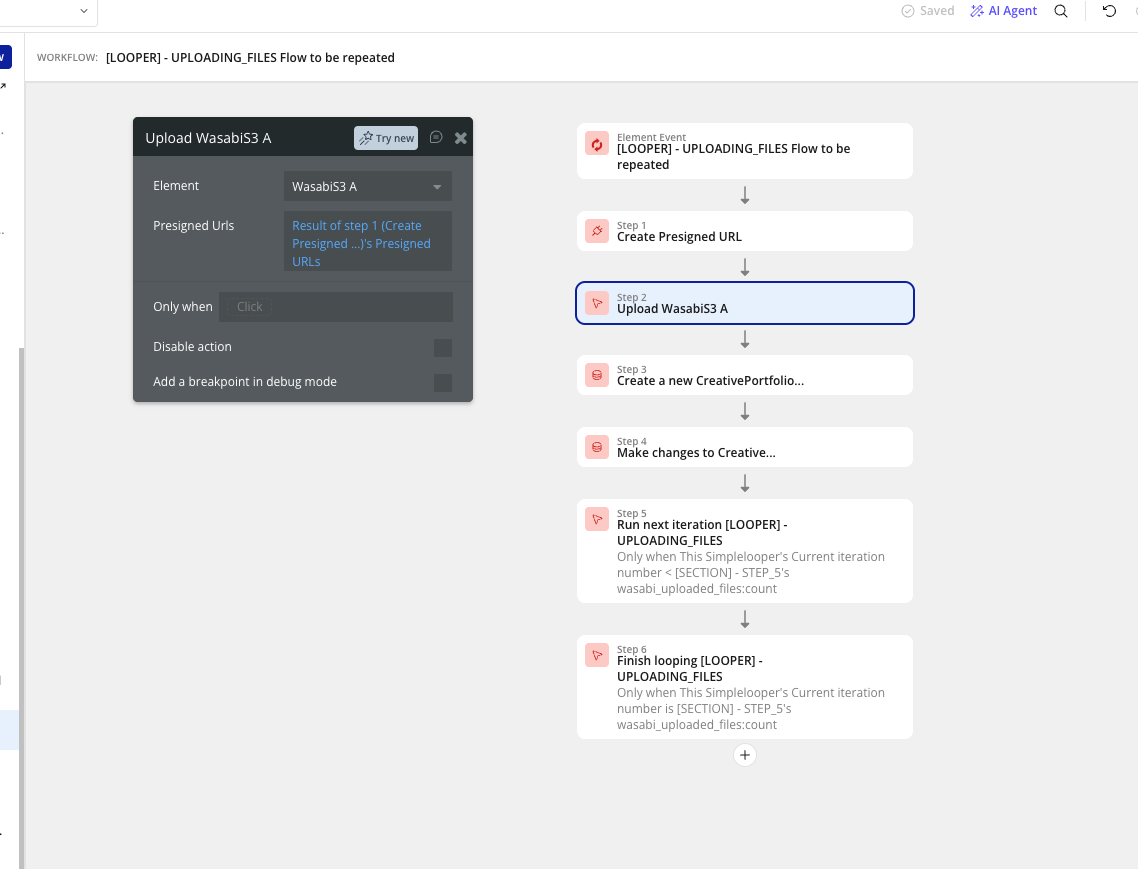
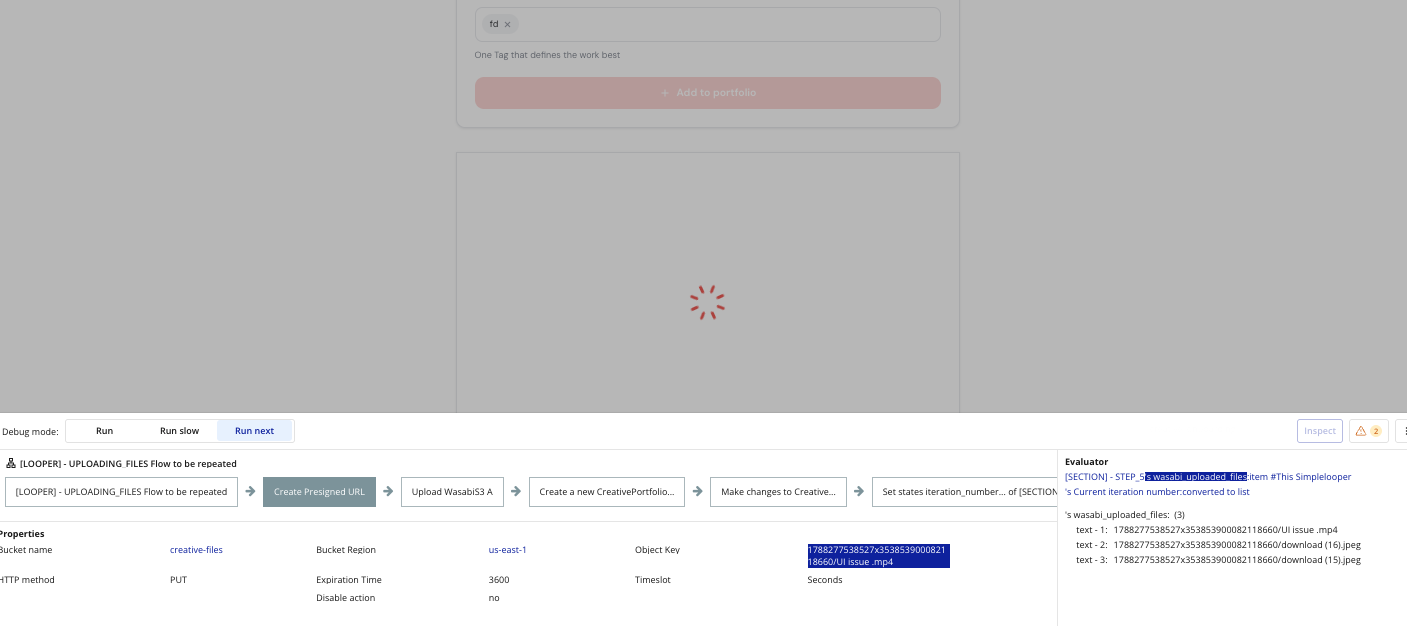
If I don’t use the presigned URL, what should I provide in this action? The action requires a presigned URL. I am already using a simple looper to send the files one by one, but I am still experiencing the issues shown in the attached screenshot. What should I do now?
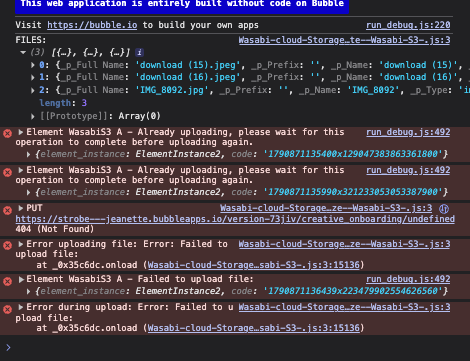
Hi @jannat.tariq,
Thank you for sharing the workflow and console logs. Let’s address what is happening and how to fix it.
Understanding the Console Errors
undefined during the upload request. This occurs when the Object Key or presigned URL generated in Step 1 evaluates to an empty or invalid value for that iteration.How to Fix the Setup
To make the looper work smoothly with presigned URLs:
List of Files:item # Current Iteration's Name).undefined path 404 error.For further configuration details, feel free to refer to our documentation: https://docs.zeroqode.com/plugins/wasabi-cloud-storage.
Best regards,
Support Team
Browse all Zeroqode Plugins for bubble
There is no issue with single file when there are multiple files then this issue occurs. I did move the Run next iteration in “A WasabiS3 file is uploaded” event. But still I am getting same error message when multiple files are uploaded
Hi @jannat.tariq,
Thank you for providing the additional context.
The “Already uploading” error occurs because the Upload WasabiS3 A action is designed to process all queued files in the uploader element in batch, rather than being called repeatedly inside a loop. When a looper triggers Upload WasabiS3 A on subsequent iterations, the element is still actively handling the upload session, which blocks new upload calls.
Recommended Setup (Without a Looper)
To upload multiple files properly with presigned URLs, remove the looper workflow entirely and set up the actions as follows:
List of Files's Location). This action returns a list of presigned URLs.Result of step 1's Presigned URLs into the Presigned Urls field. The element will handle uploading all files in its queue automatically using the list of presigned URLs.Handling Database Records Per File
If you need to create database items for each uploaded file:
This WasabiS3's uploaded file URL to create or update database records one by one.For detailed information on configuring element events and actions, please visit our documentation: Wasabi Cloud Storage.
Best regards,
Support Team
Browse all Zeroqode Plugins for bubble
I was doing that initially, but the issue is that the files get swapped after uploading. Sometimes the data type gets changed for example, an SVG may become a PDF and there are several other similar cases. The file sizes also get swapped. That’s the main issue I’m facing with this approach.
Hi @jannat.tariq ,
Why File Swapping and Type Changes Occur
When presigned URLs are generated for a list of files simultaneously, Bubble processes those API requests asynchronously. Because network responses resolve out of order, the list of returned presigned URLs ends up in a different sequence than the list of files in your uploader queue.
When the uploader assigns an out-of-order presigned URL to a file:
How to Resolve This Setup
To keep file metadata, sizes, and file types strictly aligned without triggering the “Already uploading” error, process the files 1-by-1 using a custom state index driven by the plugin event:
1. Create a Custom State for Tracking Index
Current_Index as a Number, with a default value of 1).2. Set Up the Initial Upload Workflow
Current_Index to 1.List of Files:item # Current_Index.List of Files:item # Current_Index.3. Advance to Next File via Plugin Event
Current_Index = Current_Index + 1.Only when Current_Index <= List of Files:count.This event-driven setup guarantees that every individual file receives its exact matching presigned URL and Content-Type, while ensuring the uploader finishes its active upload session before beginning the next.
Best regards,
Support Team
Browse all Zeroqode Plugins for bubble
Hi @jannat.tariq,
I am following up to check if you had a chance to try the event-driven setup using the custom state index described above.
Please let us know if this resolved the file swapping issue or if you need any further assistance with your workflow.
Best regards,
Support Team
Browse all Zeroqode Plugins for bubble